How to Convert .m4a Files to .mp3 Using iTunes
I have been asked several times for advice on how to organize a music library with mixed file formats and what tools are best for the task. My advice: see which format most of your files are in now, and convert the minority to match the majority. For example, say you have 75% mp3 and 25% m4a — I would suggest converting those 25% into mp3 and then using MusicZen to rename, move, and organize your files into the appropriate folders.
Here is the quickest way I have found to convert audio files to mp3 using iTunes:
1. Download and install iTunes if you do not already have it.
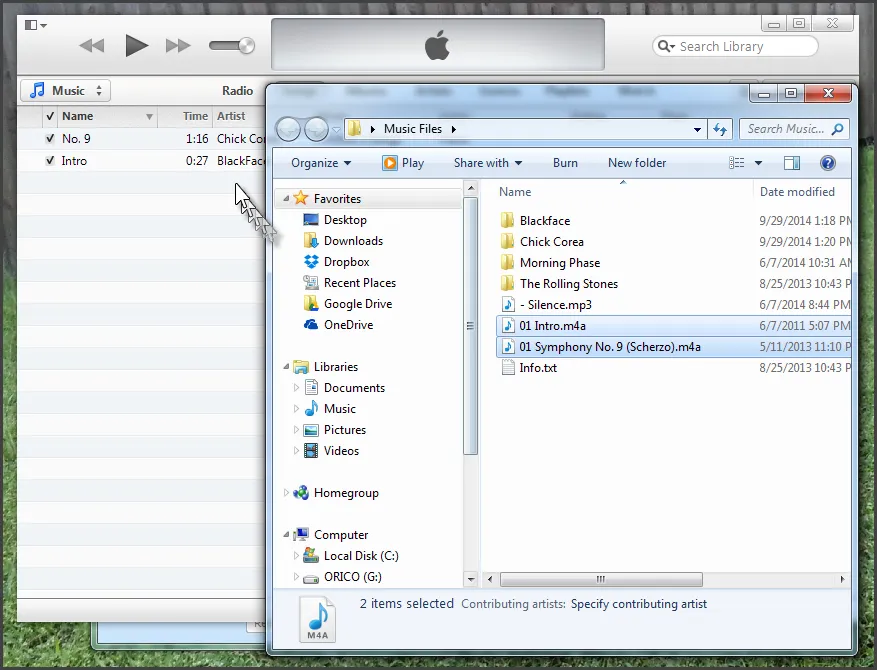
2. Load your files by dragging them into iTunes.
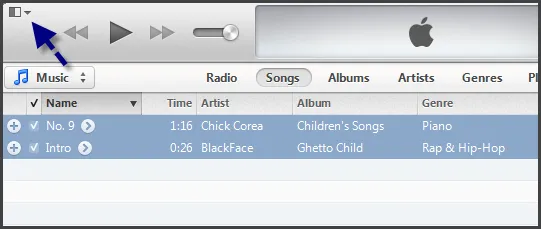
3. Click on the icon on the top left corner and click on Preferences….
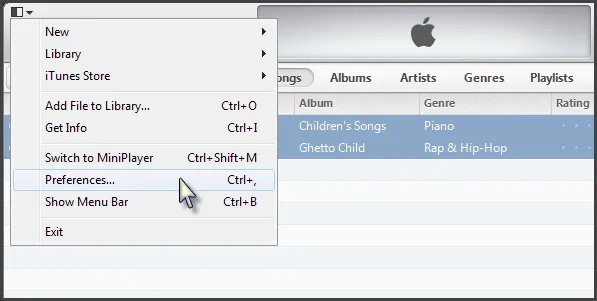
4. Click on Import Settings….
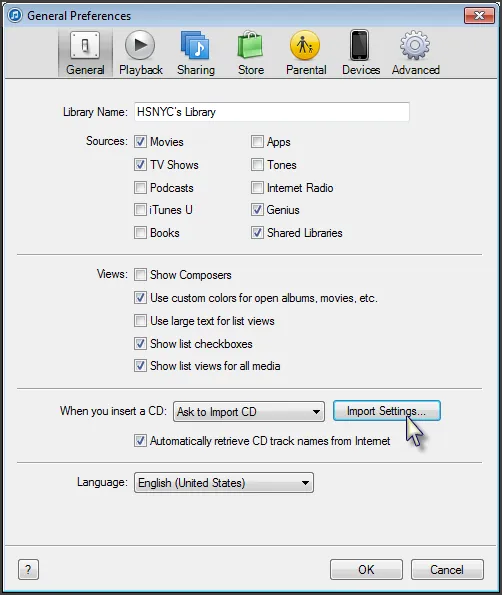
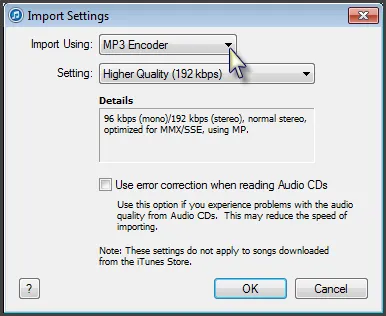
5. On the first dropdown, select MP3 Encoder and choose the desired audio quality (I usually pick 192kbps). Click OK.
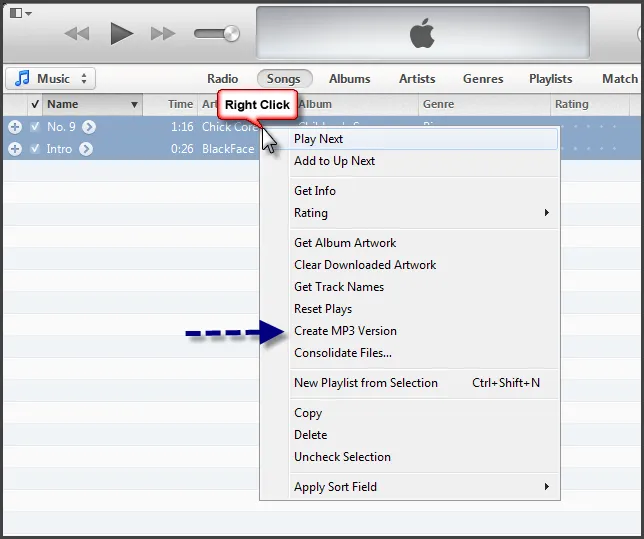
6. Select the files to convert (hold Shift + Click to select a range). Right-click and choose Create MP3 version.
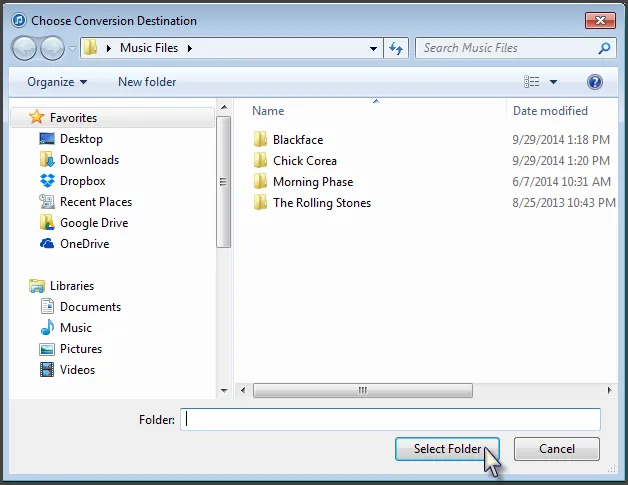
7. Browse to select the destination folder for the converted files and click Select Folder.
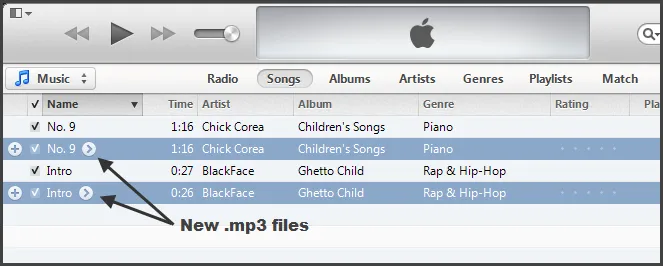
8. The new mp3 files will appear in iTunes next to the existing files.
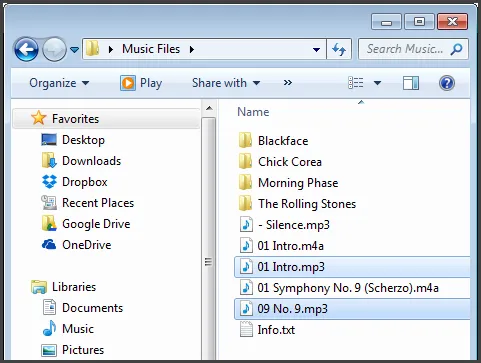
9. Open the destination folder and you will also see the converted files there.
That is all there is to it. I hope this helps you get closer to your goal of organizing your music files. Thanks for reading and supporting MusicZen.