MusicZen is Truncating File Names or Not Reading Certain Tags
If you notice that MusicZen is truncating your files or they are missing a letter in the file or folder name — or that some file tags are not being recognized even after you have verified the mp3 file shows the tag in its properties — this may be caused by a bad file or corruption in the encoding of the file.
This problem may occur on files that were created with an older or buggy mp3 encoder. The mp3 metadata may be bad, invalid, or simply corrupted. These files may also have invalid symbols or characters within the tag that are removed by MusicZen or otherwise not recognized.
To fix this, you only need to do the following steps once per affected file.
1. Download and install iTunes if you do not already have it.
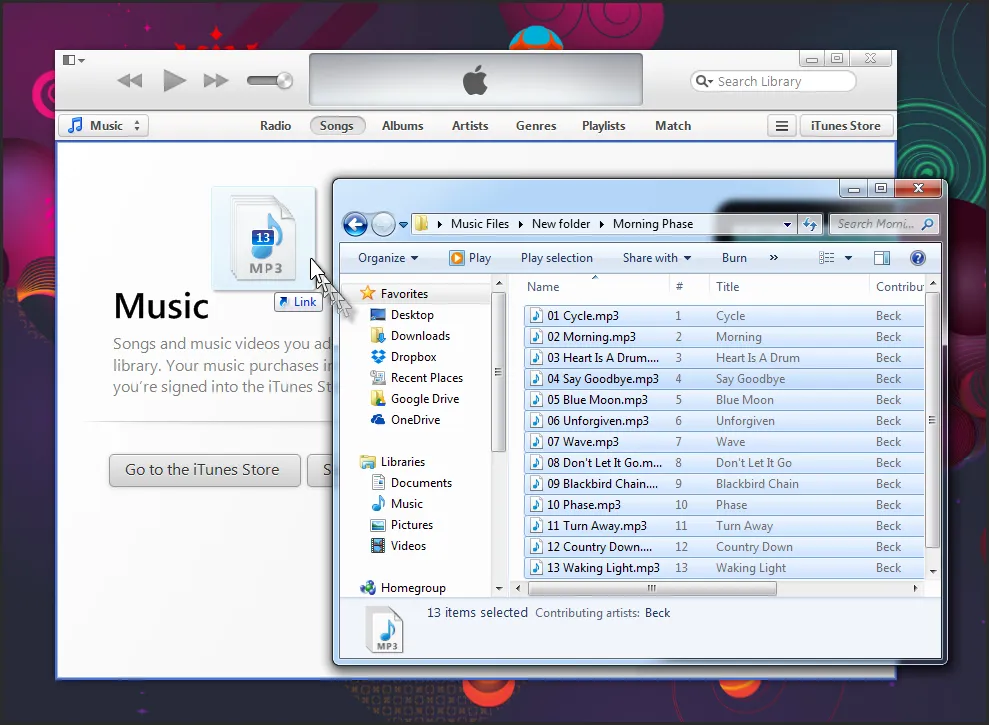
2. Load your files by dragging them to iTunes while it is open.
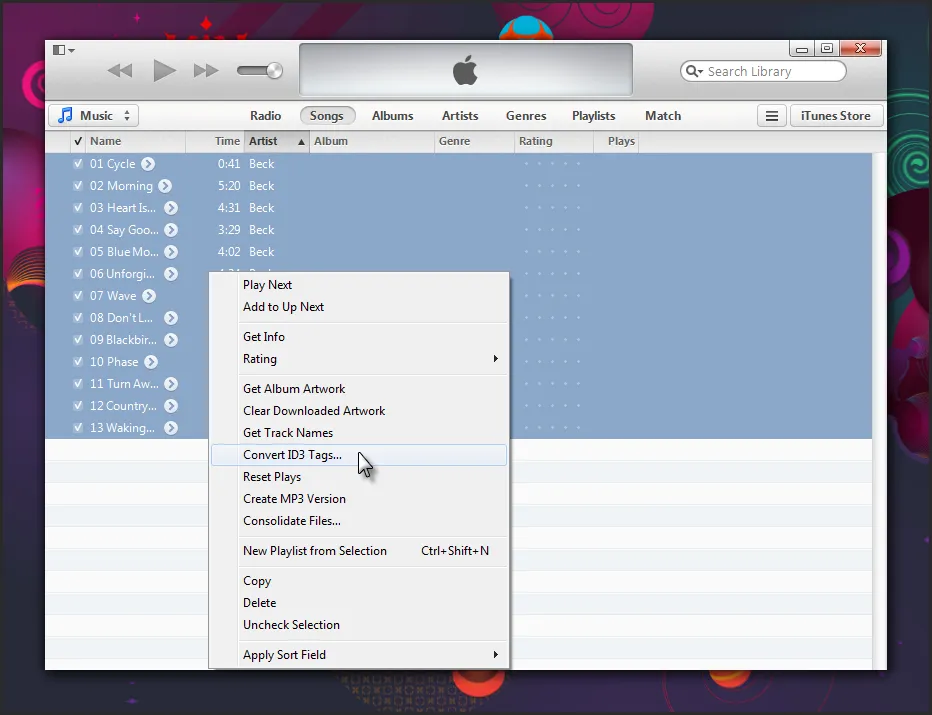
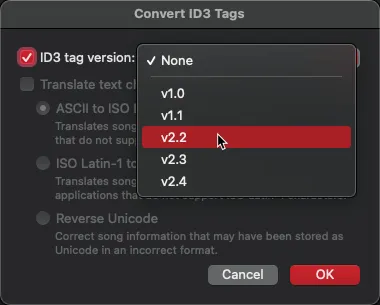
3. Select all your affected files (hold Shift + Click to select a range). Right-click and select Convert ID3 Tags.
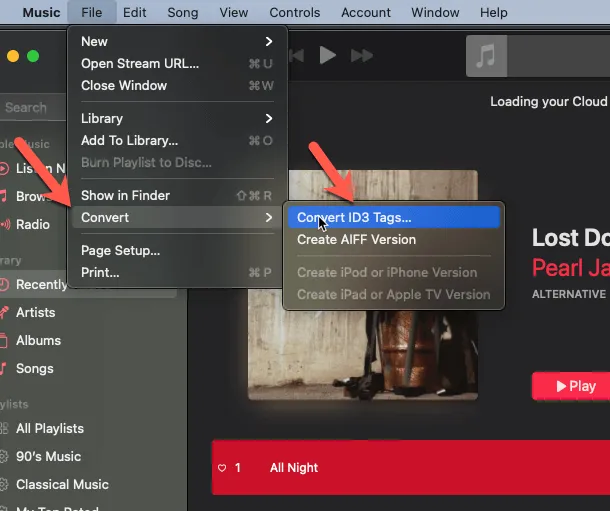
UPDATE: On newer versions of iTunes, go to File → Convert → Convert ID3 Tags.
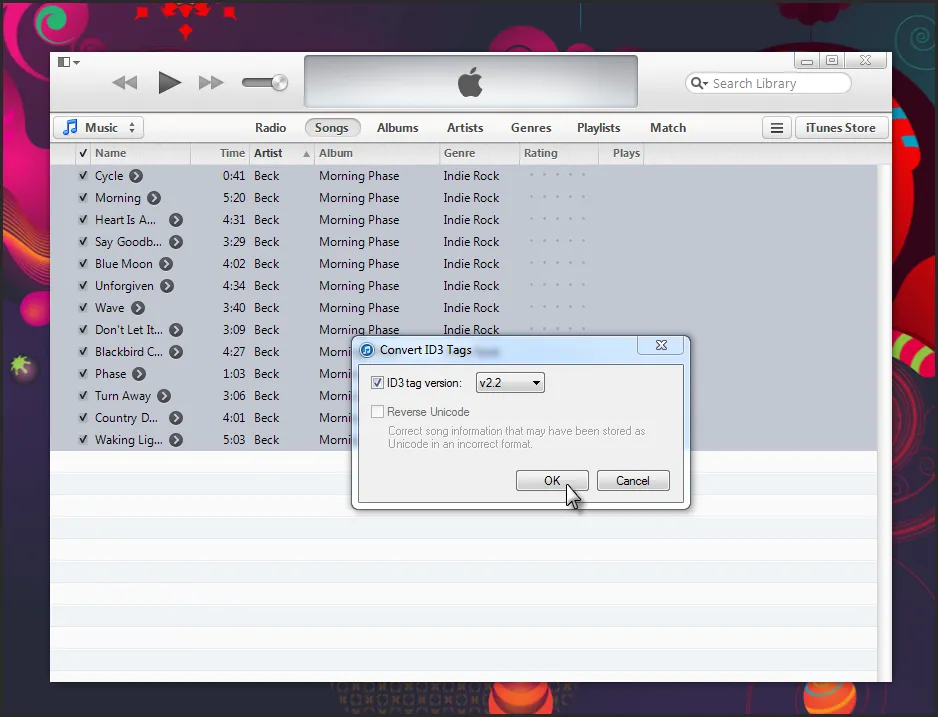
4. Check the ID3 tag version checkbox and select v2.2. Click OK and you will notice the tags populate in iTunes.
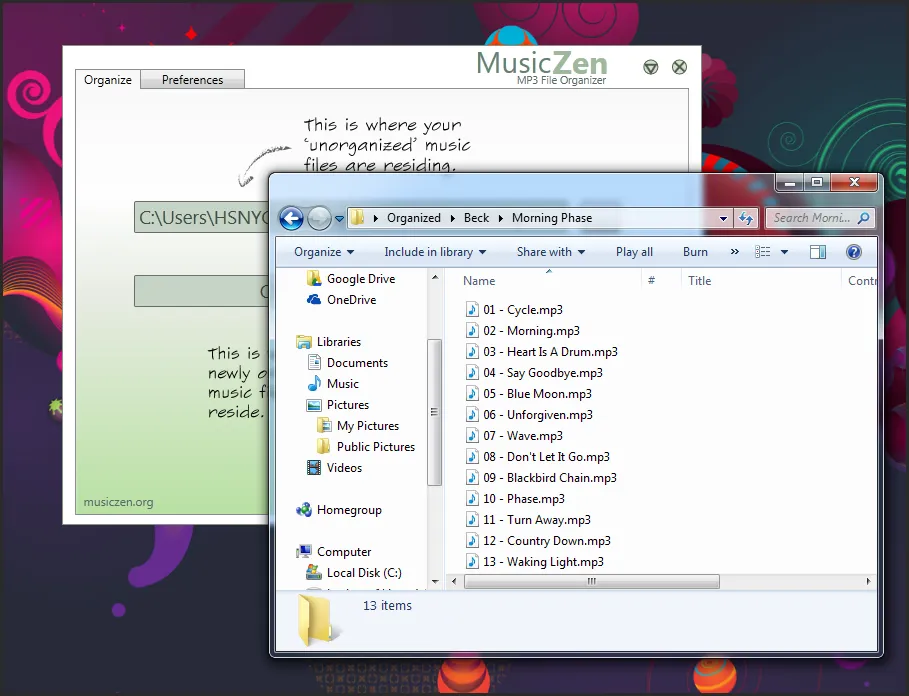
5. You can now use MusicZen to move or copy your mp3 files. Since iTunes has fixed the tag info in the mp3 file, MusicZen will now recognise the corrected tags.
I hope this helps you get your files to where you want them to be. Thank you for visiting and supporting MusicZen.